Add Merch Maker to your assistant.
Add it once, then describe the merch you want in any chat. You sign in to Merch Maker when you connect, and you can disconnect at any time.
Server address
https://merchmaker.ai/mcp ChatGPT
- 1 Open ChatGPT’s settings, go to Apps & Connectors, and turn on developer mode under Advanced settings.
- 2 Create a connector. Paste the server address above, choose OAuth, and keep the default settings.
- 3 Sign in to Merch Maker when ChatGPT asks, then allow access.
Claude
- 1 Open Claude’s settings, go to Connectors, and choose Add custom connector.
- 2 Paste the server address above and leave Advanced settings empty.
- 3 Sign in to Merch Maker when Claude asks, then allow access.
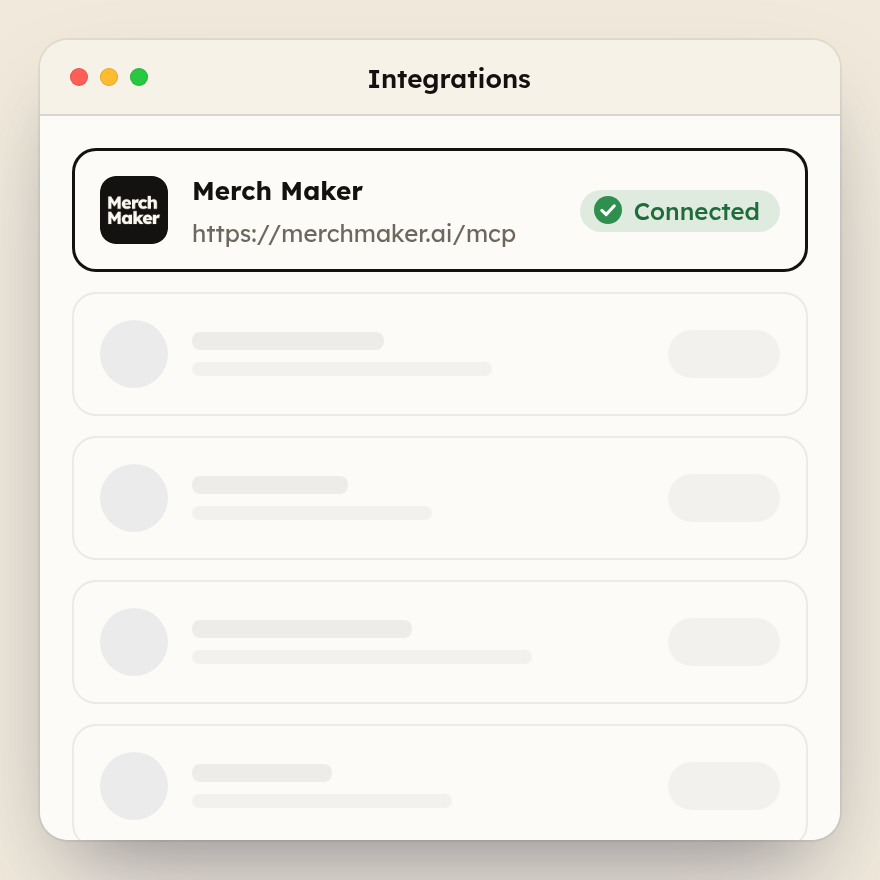
Then just ask
Start a new chat and describe what you want — who it is for, roughly how many, and any colours. Attach your logo if you have one.